
Md. Joynal Abdin
Business Consultant | Entrepreneur | International Trade Specialist
Founder & Chief Executive Officer, Trade & Investment Bangladesh (T&IB)
Secretary General, Brazil Bangladesh Chamber of Commerce & Industry (BBCCI)
Artificial Intelligence (AI) is transforming the modern workplace. From drafting professional emails and preparing business proposals to analyzing financial reports, creating presentations, managing meetings, and automating repetitive tasks, AI tools are changing how organizations operate. In today’s competitive business environment, productivity is no longer measured simply by how many hours employees spend at their desks. Instead, organizations increasingly focus on how efficiently they can complete assignments, solve problems, communicate, and make informed decisions.
The good news is that you do not need to be a programmer or technology expert to benefit from AI. Most modern AI tools are designed for ordinary professionals who can operate a computer, browse the internet, and write simple instructions. Imagine completing a two-hour research assignment in 30 minutes, preparing a professional presentation in 15 minutes, summarizing a lengthy meeting in seconds, or drafting ten personalized business emails in the time previously required to write one.
These are practical applications of AI when the right tools, clear instructions, and human review are combined. This comprehensive tutorial introduces ten popular AI productivity tools, explains their professional applications, and provides step-by-step instructions to help you integrate them into everyday office activities.
By the end of this guide, you will understand how to use AI for business writing, research, data analysis, graphic design, presentations, meeting documentation, office communication, project management, and workflow automation. You will also learn when to use each tool, how to write effective AI instructions, how to avoid common mistakes, and how to build a practical AI-powered office workflow.
Top 10 AI Tools for Office Productivity at a Glance
| AI tool | Best professional application | Official website |
| 1. ChatGPT | Writing, research, analysis, planning | ChatGPT |
| 2. Microsoft Copilot | Word, Excel, PowerPoint, Outlook | Copilot |
| 3. Google Gemini | Gmail, Docs, Sheets, Google Workspace | Gemini |
| 4. Claude | Long documents, reports, analytical writing | Claude |
| 5. Perplexity AI | Web research and source discovery | Perplexity |
| 6. Grammarly | Grammar, tone, and business communication | Grammarly |
| 7. Canva AI | Graphics, marketing, and presentations | Canva |
| 8. Notion AI | Knowledge management and project documentation | Notion |
| 9. Otter.ai | Meeting transcription and summaries | Otter.ai |
| 10. Zapier AI | Workflow automation and app integration | Zapier |
These are ten widely adopted or well-established options, not a verified ranking by worldwide active-user numbers. Features, availability, integrations, and subscription requirements vary.
1. ChatGPT — Your All-in-One AI Office Assistant
Developer: OpenAI
Website: chatgpt.com
Best for: Professional writing, business research, document preparation, spreadsheet analysis, translation, and planning.
Introduction
ChatGPT is a conversational AI assistant capable of understanding instructions written in ordinary language and producing structured, useful responses. It can assist professionals across departments, including administration, finance, marketing, human resources, business development, and management. It supports document analysis, file uploads, web search, data visualization, and other capabilities depending on the selected plan.
OpenAI Help Center+1
Professional Uses and Utilities
ChatGPT can help you prepare official correspondence, business proposals, feasibility studies, meeting agendas, policy documents, marketing strategies, recruitment advertisements, and financial analyses. For example, a business development executive can use ChatGPT to draft a partnership proposal, translate it into another language, develop a negotiation checklist, and prepare a presentation outline all within the same conversation.
Step-by-Step Tutorial
- Visit ChatGPT and sign in.
- Start a new conversation.
- Explain your task, including its purpose, intended audience, and required format.
- Attach relevant files when analysis of existing documents is necessary.
- Review the generated response and request improvements.
- Copy, export, or use the completed work in your office software.
Practical prompt:
Act as an experienced business development consultant. Prepare a professional three-page business proposal for exporting Bangladeshi leather products to international markets. Include market opportunities, potential customers, promotional strategies, risks, and an implementation timeline. Use formal business English.
When, Where, and Why to Use ChatGPT
Use ChatGPT when you need to create first drafts, understand complex information, brainstorm solutions, or organize large amounts of material. It is particularly valuable for executives, secretaries, consultants, entrepreneurs, researchers, and administrative officers.
Productivity benefit: A well-structured first draft can reduce the time spent starting a document from scratch. However, financial figures, legal interpretations, and external facts must be verified before professional use.
2. Microsoft Copilot — Make Microsoft Office Work Faster
Developer: Microsoft
Website: copilot.microsoft.com
Best for: Word documents, Excel spreadsheets, PowerPoint presentations, Outlook emails, and Teams collaboration.
Introduction
Microsoft Copilot is particularly useful for organizations that already depend on Microsoft 365 applications. With an eligible Microsoft 365 Copilot subscription, AI assistance can work within familiar applications and, subject to permissions, use organizational information.
Professional Uses and Utilities
In Microsoft Word, Copilot can draft and rewrite reports. In Excel, it can help users explore data, identify trends, and understand formulas. In PowerPoint, it can assist with presentation development. In Outlook, it can summarize email conversations and prepare replies. In Microsoft Teams, eligible Copilot features can help summarize discussions and identify follow-up actions.
Step-by-Step Tutorial
- Confirm that your Microsoft 365 account includes the relevant Copilot features.
- Open Word, Excel, PowerPoint, or Outlook.
- Select the Copilot option where available.
- Describe the work you want completed.
- Review the suggested content, formulas, or presentation.
- Edit and save the finished document.
Practical prompt:
Analyze this monthly sales spreadsheet. Identify the five highest-performing products, calculate month-on-month growth, highlight declining sales categories, and recommend three actions to improve next month’s revenue.
When, Where, and Why to Use Microsoft Copilot
Microsoft Copilot is ideal when most daily office activities already take place in Word, Excel, PowerPoint, Outlook, and Teams.
Productivity benefit: Employees can receive AI assistance without repeatedly transferring content between different software applications.
Important: The free Copilot chatbot and paid Microsoft 365 Copilot integrations are not identical. Confirm the features included in your organization’s subscription.

3. Google Gemini — Smart Productivity for Google Workspace
Developer: Google
Website: gemini.google.com
Best for: Gmail communication, Google Docs, Sheets, presentations, research, and collaborative work.
Introduction
Google Gemini is Google’s AI assistant, offering conversational assistance and integrations across supported Google products. For businesses that use Gmail, Google Drive, Google Docs, and Google Sheets, Gemini can be a convenient addition to existing digital workflows.
Professional Uses and Utilities
Gemini can help draft emails, summarize documents, generate content ideas, explain spreadsheet information, and support collaborative planning. For example, an office administrator managing several projects can use Gemini to draft meeting invitations, prepare follow-up emails, and organize project information.
Step-by-Step Tutorial
- Visit Gemini and sign in with your Google account.
- Enter a question or instruction in the chat interface.
- Provide relevant background information or supported attachments.
- Ask Gemini to generate a document, summary, or action plan.
- Review the output and transfer it to the relevant Google application.
- If your Workspace subscription supports Gemini integration, use the AI features directly inside Gmail, Docs, or Sheets.
Practical prompt:
Prepare a weekly office work plan for a team of ten employees. Include daily priorities, responsible departments, expected deliverables, deadlines, and a Friday progress-review meeting. Present the plan in a structured table.
When, Where, and Why to Use Google Gemini
Gemini is particularly suitable for businesses using Google Workspace, educational institutions, remote teams, and professionals who collaborate through cloud-based documents.
Productivity benefit: Faster drafting, easier information organization, and smoother collaboration across supported Google applications.
4. Claude — A Powerful Assistant for Reports and Complex Documents
Developer: Anthropic
Website: claude.ai
Best for: Long-form writing, policy documents, contract review, strategic analysis, and report preparation.
Introduction
Claude is an AI assistant designed for writing, reasoning, analysis, and working with complex information. It is especially useful when professionals need to review lengthy documents and produce clearly structured explanations.
Professional Uses and Utilities
Claude can assist with preparing company profiles, annual reports, policy manuals, training materials, research summaries, and comparative analyses. For instance, a company secretary may use Claude to review a lengthy policy document, identify unclear sections, and suggest improvements in wording and structure.
Step-by-Step Tutorial
- Open Claude and create an account.
- Start a conversation and describe your assignment.
- Upload a supported document or paste the relevant text.
- Specify whether you need a summary, detailed analysis, comparison, or rewrite.
- Ask Claude to identify missing information, contradictions, and recommendations.
- Check its conclusions against the original document before finalizing.
Practical prompt:
Review the attached business agreement. Prepare a structured report covering the responsibilities of each party, payment terms, deadlines, termination provisions, potential commercial risks, and clauses requiring clarification. Cite the relevant sections and do not invent missing terms.
When, Where, and Why to Use Claude
Use Claude when preparing extensive reports, comparing policies, reviewing agreements, or transforming technical information into accessible language.
Productivity benefit: It can accelerate the initial review of complicated material and help organize findings logically. Legal documents still require qualified professional review.
5. Perplexity AI — Research Information Faster
Developer: Perplexity AI
Website: perplexity.ai
Best for: Market research, competitor analysis, industry trends, source discovery, and fact-finding.
Introduction
Perplexity is an AI-powered research and answer engine that combines conversational responses with links to supporting sources. Unlike a conventional search engine that primarily provides a list of webpages, Perplexity aims to summarize information and identify relevant references.
Professional Uses and Utilities
Business professionals can use Perplexity to investigate export markets, identify industry associations, compare competitors, research regulations, and explore emerging technologies. An export manager, for example, can research a new overseas market and collect references for market size, import regulations, potential buyers, and industry trends.
Step-by-Step Tutorial
- Visit Perplexity.
- Enter a specific research question.
- Ask for authoritative and recent sources.
- Read the generated explanation and inspect the citations.
- Open the original webpages to verify important claims.
- Organize verified findings into a research report.
Practical prompt:
Research the market opportunities for Bangladeshi ceramic tableware in Brazil. Identify relevant import statistics, tariffs, regulatory requirements, potential buyer categories, and competing supplier countries. Prioritize official and recent sources, provide publication dates, and distinguish verified facts from estimates.
When, Where, and Why to Use Perplexity
Perplexity is useful before business meetings, investment decisions, international market-entry projects, and strategic planning exercises.
Productivity benefit: It can reduce the time needed to discover relevant information and locate supporting sources. Remember that AI-generated citations are not guarantees of accuracy. Always inspect original sources, especially when making investment, legal, or regulatory decisions.
6. Grammarly — Improve Professional English Communication
Developer: Grammarly
Website: grammarly.com
Best for: Business emails, grammar correction, professional tone, proofreading, and clear communication.
Introduction
Grammarly is an AI-powered writing assistant that helps users improve grammar, spelling, clarity, and tone. Its writing features can be useful for professionals who regularly communicate in English.
Professional Uses and Utilities
Grammarly can improve official letters, customer responses, proposals, reports, recruitment notices, and marketing messages. It is particularly helpful when an employee has already written a message but wants to make it more polished, concise, diplomatic, or persuasive.
Step-by-Step Tutorial
- Visit Grammarly and register.
- Install the supported browser extension or desktop application, or use its writing interface.
- Type or paste your business communication.
- Review suggestions concerning grammar, word choice, clarity, and tone.
- Apply appropriate changes without altering the intended meaning.
- Proofread the final message before sending.
Practical prompt:
Rewrite this email in formal, diplomatic, and concise business English. Maintain the original meaning, correct grammatical errors, remove unnecessary repetition, and end with a professional closing.
When, Where, and Why to Use Grammarly
Use Grammarly before sending important emails, proposals, official letters, or public communications.
Productivity benefit: Fewer writing errors, faster proofreading, and more consistent professional communication.
7. Canva AI — Create Professional Graphics Without a Designer
Developer: Canva
Website: canva.com
Best for: Presentations, brochures, banners, social media posts, promotional materials, and corporate graphics.
Introduction
Canva is an online design platform offering templates, editing tools, and AI-assisted creative features. Its AI capabilities help professionals generate design concepts, prepare text, create visual elements, and improve layouts.
Professional Uses and Utilities
Marketing executives can create promotional banners, while administrative officers can prepare certificates, event invitations, organizational profiles, and presentation slides. Small businesses can use Canva to maintain a consistent visual identity without outsourcing every routine design assignment.
Step-by-Step Tutorial
- Visit Canva and sign in.
- Select a design type, such as Presentation, Poster, or Social Media Post.
- Choose a template or start with a blank design.
- Use available AI design features to develop content or visual concepts.
- Customize the colors, fonts, images, company logo, and contact details.
- Proofread the text and export the final design in a suitable format.
Practical prompt:
Create a professional corporate promotional banner for an international business networking event. Use a modern blue-and-white theme, include space for the event title, date, venue, organizer’s logo, registration details, and a prominent call to action. Keep the design clean and readable.
When, Where, and Why to Use Canva AI
Use Canva for regular marketing campaigns, office announcements, event promotion, digital advertising, and visual presentations.
Productivity benefit: Faster creation of professional-looking materials, easier revisions, and reduced dependence on external designers for simple projects. AI-generated graphics should still be checked for spelling, visual accuracy, branding consistency, and commercial-use requirements.

8. Notion AI — Organize Your Entire Office in One Workspace
Developer: Notion
Website: notion.so
Best for: Project management, task documentation, internal knowledge bases, meeting notes, and team collaboration.
Introduction
Notion combines documents, databases, project pages, and collaborative workspaces. Notion AI adds capabilities such as summarizing information, drafting content, answering questions using accessible workspace information, and organizing notes.
Professional Uses and Utilities
Organizations can maintain employee handbooks, operating procedures, client records, project trackers, meeting decisions, and departmental work plans in a centralized environment.
For example, a project manager can organize an exhibition project into sections covering marketing, finance, registration, logistics, and stakeholder communication.
Step-by-Step Tutorial
- Create an account at Notion.
- Create a workspace for your organization or department.
- Add pages for projects, tasks, meetings, and procedures.
- Create a task database with owners, priorities, deadlines, and statuses.
- Use available Notion AI features to summarize updates or draft documentation.
- Invite colleagues and assign appropriate access permissions.
- Review and update project information regularly.
Practical prompt:
Create a project management structure for organizing an international trade exhibition. Include workstreams for exhibitor registration, buyer recruitment, marketing, venue management, finance, logistics, and stakeholder relations. Define key tasks, responsible teams, deadlines, and weekly reporting requirements.
When, Where, and Why to Use Notion AI
Notion AI is suitable for organizations managing multiple projects, distributed teams, recurring tasks, and substantial internal documentation.
Productivity benefit: Less time searching for information, improved accountability, and more organized project execution.
9. Otter.ai — Turn Meetings into Actionable Records
Developer: Otter.ai
Website: otter.ai
Best for: Meeting transcription, discussion summaries, action items, and searchable meeting records.
Introduction
Otter.ai is an AI-powered meeting assistant that converts supported spoken conversations into written transcripts and summaries. It can help professionals document discussions and identify decisions without relying entirely on manual note-taking.
Professional Uses and Utilities
Otter.ai can support board meetings, project reviews, client discussions, interviews, training sessions, and virtual conferences. For example, after a one-hour management meeting, a team can review the transcript, prepare minutes, and extract follow-up responsibilities.
Step-by-Step Tutorial
- Visit Otter.ai and create an account.
- Review the supported meeting integrations and recording options.
- Obtain required consent from meeting participants.
- Start a recording or connect an eligible meeting platform.
- Allow the tool to generate the transcript and available summary.
- Correct transcription errors, especially names, numbers, and deadlines.
- Prepare and distribute approved meeting minutes.
Practical prompt:
Summarize this meeting transcript into formal minutes. Include meeting objectives, major discussion points, decisions taken, assigned responsibilities, deadlines, unresolved issues, and the proposed date of the next meeting. Mark any unclear information for verification.
When, Where, and Why to Use Otter.ai
Otter.ai is particularly valuable for professionals attending frequent meetings or managing projects involving multiple stakeholders.
Productivity benefit: Reduced manual note-taking, easier retrieval of past discussions, and improved follow-up accountability.
Recording permissions, language support, and transcription accuracy should be checked before use.
10. Zapier AI — Automate Repetitive Office Tasks
Developer: Zapier
Website: zapier.com
Best for: Automating email notifications, data entry, customer follow-ups, task creation, and application workflows.
Introduction
Zapier is an automation platform that connects different applications and allows them to exchange information through workflows. Its AI-related features can help users build automations and process information within those workflows. A workflow typically starts with a trigger, followed by one or more actions.
For example, when someone submits an online registration form, Zapier can automatically add the details to a spreadsheet and notify the responsible employee.
Professional Uses and Utilities
Zapier can support lead management, customer relationship management, registration processing, reporting, notifications, and administrative coordination.
Step-by-Step Tutorial
- Visit Zapier and register.
- Select the option to create a new automation, commonly called a Zap.
- Choose a trigger application, such as Google Forms or Gmail.
- Define the triggering event, such as receiving a new form response.
- Select an action application, such as Google Sheets.
- Map the information from the trigger to the appropriate spreadsheet columns.
- Add additional actions, such as sending a notification.
- Test the automation using sample data.
- Enable the workflow and monitor its performance.
Practical workflow example:
New registration received: Google Forms trigger
Save registration information: Google Sheets action
Notify the registration team: Email action
When, Where, and Why to Use Zapier
Use Zapier when your employees repeatedly transfer information between applications or perform predictable administrative tasks.
Productivity benefit: Less repetitive data entry, fewer missed notifications, and more consistent workflows. Start with low-risk automations. For financial transactions, external messages, or sensitive customer information, establish approval steps and appropriate security controls.
How to Combine These 10 AI Tools into One Smart Office
The greatest productivity improvements often come from using several tools together rather than treating each application independently. Consider an organization preparing an international business conference.
Example: AI-powered conference management workflow
- Perplexity AI: Research the target market, industry trends, and relevant organizations.
- ChatGPT or Claude: Prepare invitations, proposals, concept notes, and event documentation.
- Grammarly: Proofread all external correspondence.
- Canva AI: Design banners, brochures, promotional graphics, and presentations.
- Notion AI: Organize tasks, deadlines, responsibilities, and progress reports.
- Microsoft Copilot or Gemini: Support spreadsheet reporting, email communication, and document collaboration.
- Otter.ai: Record approved meetings and produce draft minutes.
- Zapier: Transfer registration information and automate routine notifications.
This integrated approach can reduce duplicate work and improve coordination. However, not every organization needs all ten tools. Select software according to actual tasks, existing subscriptions, and employee capabilities.
How Much Time Could AI Save Your Office?
The following table illustrates possible time savings for routine office assignments. These are hypothetical planning estimates, not measured performance benchmarks.
| Office assignment | Traditional process | AI-assisted target |
| Drafting a business proposal | 120 min | 35 min |
| Preparing ten routine emails | 60 min | 20 min |
| Initial spreadsheet analysis | 90 min | 30 min |
| Creating a promotional graphic | 90 min | 25 min |
| Preparing meeting minutes | 60 min | 15 min |
| Preliminary market research | 180 min | 60 min |
| Total | 600 min | 185 min |
Illustrative time comparison
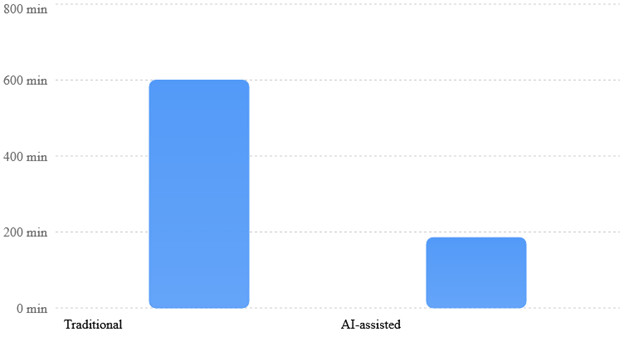
Illustrative estimates only; actual results depend on task complexity, staff experience, and verification requirements.
In this hypothetical example, the organization could save 415 minutes, or approximately 6 hours and 55 minutes, across the six assignments. Actual savings may be considerably smaller or larger. Employees must still review outputs, verify information, and correct mistakes.
Seven Practical Rules for Using AI Successfully in Your Office
- Write clear instructions: Explain the task, background, audience, required format, and expected outcome. Better instructions usually produce more useful results.
- Choose the right tool: Use Perplexity for source discovery, Grammarly for proofreading, Canva for design, and Zapier for automation rather than forcing every task into one application.
- Protect confidential information: Do not upload sensitive client records, passwords, unpublished financial statements, or confidential contracts without organizational authorization and suitable data protections.
- Verify important information: AI can generate inaccurate statistics, references, calculations, and interpretations. Check important facts against authoritative sources.
- Maintain human supervision: Employees should review AI-generated documents, financial analyses, and external communications before approving them.
- Train employees gradually: Begin with a few high-value applications before introducing more complicated AI workflows.
- Measure productivity improvements: Compare task completion time, error rates, document quality, and employee satisfaction before and after implementation.
A 30-Day Action Plan to Build an AI-Powered Office
| Period | Recommended activities | Expected outcome |
| Week 1 | Introduce ChatGPT, Gemini, or Copilot for everyday writing and research | Employees become familiar with AI assistance |
| Week 2 | Introduce Grammarly, Canva, and document analysis | Better written communication and faster content preparation |
| Week 3 | Introduce Notion and meeting transcription | Improved project coordination and documentation |
| Week 4 | Pilot Zapier automation and measure productivity | Reduced repetitive tasks and a measurable improvement plan |
Managers should appoint an AI coordinator, establish acceptable-use guidelines, and encourage employees to share successful applications.
Frequently Asked Questions (FAQs)
1. Which AI tool is best for everyday office work?
ChatGPT is a versatile starting point because it supports writing, research, planning, translation, and data analysis. However, Microsoft Copilot may be more convenient for organizations heavily using Microsoft 365, while Gemini may suit Google Workspace users.
2. Can I use AI tools without programming knowledge?
Yes. Most tools discussed in this article support natural-language instructions and visual interfaces. Advanced automations may require additional configuration, but basic AI assistance does not require coding.
3. Are these AI tools free?
Several offer free access, trials, or limited functionality. Advanced features, higher usage limits, enterprise security controls, and integrations may require paid subscriptions. Check each official website for current pricing.
4. Can AI replace office employees?
AI can automate or accelerate many routine activities, but employees remain essential for judgment, relationship management, accountability, negotiations, and complex decision-making.
5. Which AI tools are best for small businesses in Bangladesh?
A practical starting combination is ChatGPT for writing and planning, Canva for marketing materials, and Grammarly for professional English communication. Businesses already using Microsoft 365 or Google Workspace should evaluate the AI capabilities included in their existing software.
6. How can organizations measure AI productivity?
Record the time required to complete recurring tasks before introducing AI. Then measure the same activities after implementation, including time spent checking and correcting AI outputs. Compare speed, accuracy, cost, and quality.
Conclusion:
Artificial Intelligence is becoming an important component of modern office management. Organizations that learn to use AI responsibly can improve communication, accelerate document preparation, simplify research, automate routine tasks, and strengthen operational efficiency.
The ten tools discussed ChatGPT, Microsoft Copilot, Google Gemini, Claude, Perplexity AI, Grammarly, Canva AI, Notion AI, Otter.ai, and Zapier AI offer practical opportunities for businesses of different sizes.
However, the objective should not be to subscribe to as many AI applications as possible. The real objective is to identify repetitive, time-consuming activities and apply the most suitable technology to complete them faster and more accurately.
Start with one tool, master its basic functions, introduce it into your daily workflow, and gradually expand your capabilities. The smartest office is not necessarily the one with the most expensive technology. It is the office where employees combine their professional knowledge, creativity, and judgment with effective digital tools.
Start learning AI today to make your office smarter, your work easier, and your professional life more productive.
Comments